Set up Cashful with Back Tap
A quick iPhone guide
If you didn’t open the shortcut from the link
Open the Cashful: Add Expense shortcut
Tap on iPhone to add it to your Shortcuts in one step. Otherwise, follow the manual steps below.
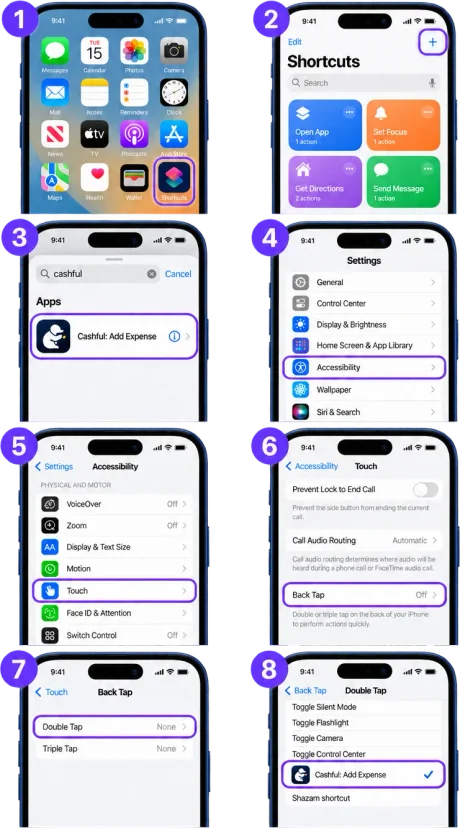
- 1Open the Shortcuts app
- 2Tap the + in the top-right corner
- 3Search for “cashful” and choose “Cashful: Add Expense”
Assign it to Back Tap
- 4Open Settings → Go to Accessibility
- 5Open Touch
- 6Tap Back Tap
- 7Under Double Tap, select your shortcut
- 8It will appear at the bottom of the list.
Done!
Now a double tap on the back of your iPhone will run your Cashful shortcut.