How to track expenses on Apple Watch
Updated
The easiest moment to log an expense is right after you pay, and your watch is already on your wrist. Here is how to track expenses on Apple Watch with Cashful, an expense tracker for iPhone that includes a free watch app.
Why log expenses on your wrist
Most missed entries are not forgotten on purpose. You pay at the counter, your phone is in a bag or a back pocket, and by the time you take it out the moment has passed. An hour later, was the coffee $4.50 or $5.20?
A watch removes that step. You raise your wrist, add the amount and a category, and you are done before your card is back in your wallet. Entries made on the spot keep a budget accurate.
Set up Cashful on Apple Watch
The watch app is part of Cashful and is free for everyone, with no Pro subscription needed. It installs together with the iPhone app. If it does not appear on your watch automatically, open the Watch app on your iPhone, find Cashful under Available Apps and tap Install.
- Requirements: an Apple Watch with watchOS 10 or later, paired with an iPhone that has Cashful installed.
- Nothing to set up twice: your accounts, balances and categories come from the iPhone. Open Cashful on your iPhone once and the watch receives them.
- Your language: the watch app works in the same 13 languages as the iPhone app.
Three ways to enter an amount: voice, Digital Crown, keypad
Tap + or the mic at the bottom of the home screen, or open an account first so the expense goes straight into it.
- Voice. Tap the mic and say something like "Lunch 12.40, card". Cashful reads the amount, category and account from the sentence and shows a card for you to check. Tap Save, or correct the amount with the Crown if something is off. If you already use the voice expense tracker on iPhone, it works the same way.
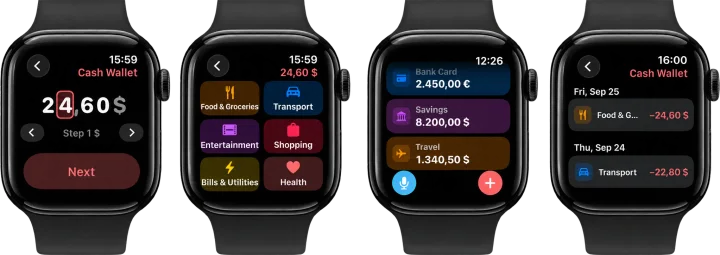
- Digital Crown. The amount is built digit by digit, like setting a timer. One digit is highlighted, turning the Crown changes it, and you move to another digit with the arrows or by tapping it. While the amount is still zero, the account's three most frequent amounts are shown, so a regular coffee is often a single tap.
- Keypad. Prefer typing? The button in the top right corner switches to a calculator style keypad, and Cashful remembers your choice for next time.
On watches that support the double tap gesture, a double tap confirms Next and Save, so you can finish an entry with one hand.
Pick a category and account
After the amount, Cashful shows a grid of your six most used expense categories. One tap on a category saves the expense. If the one you need is not there, tap All categories for the full list. The grid follows your own habits.
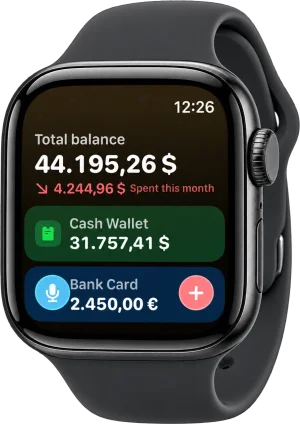
The home screen shows your total balance and this month's spending at the top, followed by all your accounts in one list. Tap an account to see its recent history and to add an expense to that account. From the home screen, + and the mic use the account you used last.
Each account keeps its own currency, so an expense added to a euro account is entered in euros and one added to a dollar card in dollars.
Even faster: watch-face widgets, Smart Stack, Control Center and the Action button
- Watch-face widgets: Add Expense opens the Crown entry, Voice Expense starts dictation, Account Balance shows one account you choose and adds an expense to it with a tap, and Total Balance shows your balance with this month's spending.
- Smart Stack: on watchOS 26, an Expense Here card can appear when you are at a café, restaurant, store, pharmacy or gas station, so logging is one tap away at the moment you pay. Cashful itself does not receive your location.
- Control Center and the Action button: on watchOS 26, Add Expense and Voice Expense are also available as controls, and on Apple Watch Ultra you can assign one of them to the Action button.
On iPhone, the same idea works with Back Tap: double-tap the back of the phone and a new expense opens.
Where the data lives
Your iPhone is the source of truth. It sends the watch a compact copy of your accounts, balances, categories and recent entries, and the watch keeps showing that copy when the phone is out of reach.
An expense you add on the watch is saved on the watch right away and appears in its history with a small sync mark. The watch then passes it to the iPhone: immediately when the phone is nearby, or later, as soon as the two reconnect. The iPhone saves each entry exactly once, so a retry never creates a duplicate. From there the expense sits in your normal history and, if you use iCloud sync, in your own iCloud and on your iPad.
Voice is the one method that needs an internet connection, because the sentence is read by Cashful's server to fill in the amount, category and account. The Crown and the keypad work without a connection. No bank connection is involved at any point.
What stays on iPhone
The watch is built for one job: capturing expenses quickly. Some things work better on a bigger screen and stay in the iPhone app:
- Income and transfers between accounts. The watch logs expenses only.
- Editing or deleting entries, and managing accounts and categories.
- Analytics and charts.
- Receipt scanning. See how to scan receipts into an expense tracker.
- ChatGPT & AI, the Pro export for analyzing your spending with ChatGPT.
Everything you log on your wrist is waiting there, in the Cashful app for iPhone.
Questions
Is the Cashful Apple Watch app free?
Yes. The watch app is included with Cashful and is free for everyone, with no Pro subscription required. It installs together with the iPhone app.
Can I add an expense when my iPhone is not nearby?
Yes, with the Digital Crown or the keypad. The expense is saved on the watch at once and sent to your iPhone as soon as the two reconnect. Voice entry needs an internet connection, through Wi-Fi, a cellular watch or the paired iPhone, because the sentence is read online.
Which Apple Watch models and watchOS versions work?
Any Apple Watch running watchOS 10 or later, paired with an iPhone that has Cashful installed. The Smart Stack card and the Control Center and Action button controls need watchOS 26, and the Action button is available on Apple Watch Ultra.

Get Cashful for iPhone and log your next expense from your wrist, with the watch app included for free.
Get Cashful